1. Before you start
- Make sure you have an internet connection for license activation and credit updates.
- Have your valid NoteDealAnalyzer license key ready.
- Activate the license before running calculations.
- Prepare your deal information or import file before starting analysis.
2. Credits and license activation
Open Credits, enter your license key, click Activate, then click Refresh to confirm the latest balance.
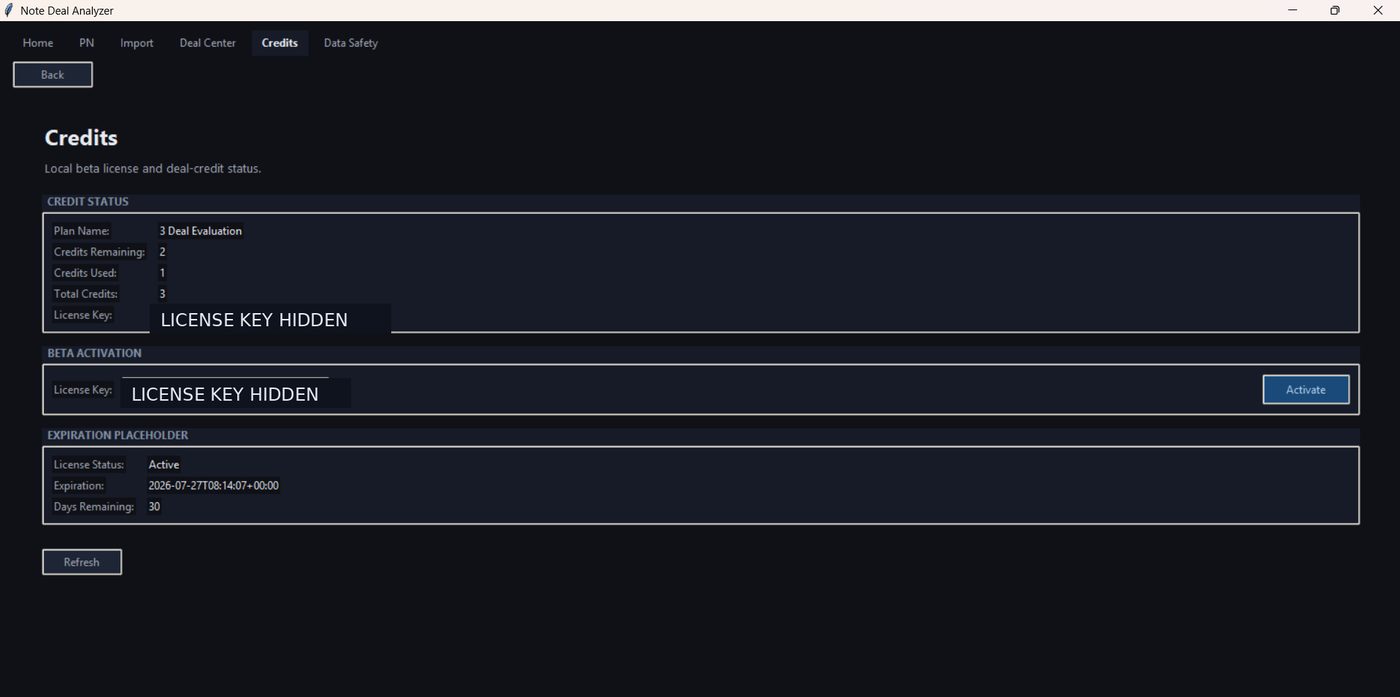
| Field | Meaning |
|---|---|
| Plan Name | The active license or credit package. |
| Credits Remaining | Credits still available for successful calculations. |
| Credits Used | Credits already used by successful calculations. |
| Total Credits | Total credits included in the active package. |
| License Status | Whether the license is active, expired, or not activated. |
3. Import workflow
- Click Import.
- Choose Paperstac or JKP where visible.
- Load the source file.
- Review the preview table and select rows.
- Click Import selected to All Registry.
- Go to Deal Center.
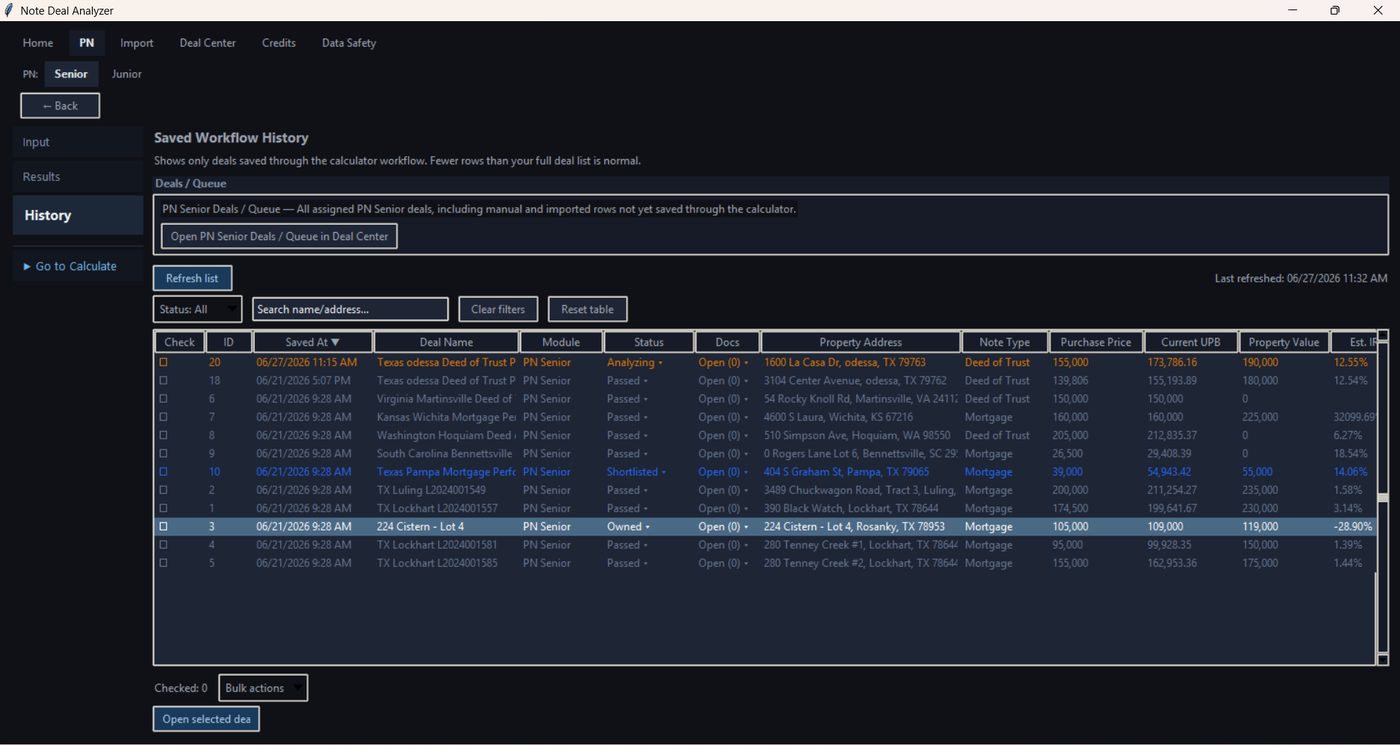
Import does not use credits. Imported deals still need PN review and Calculate before results exist.
4. Deal Center workflow
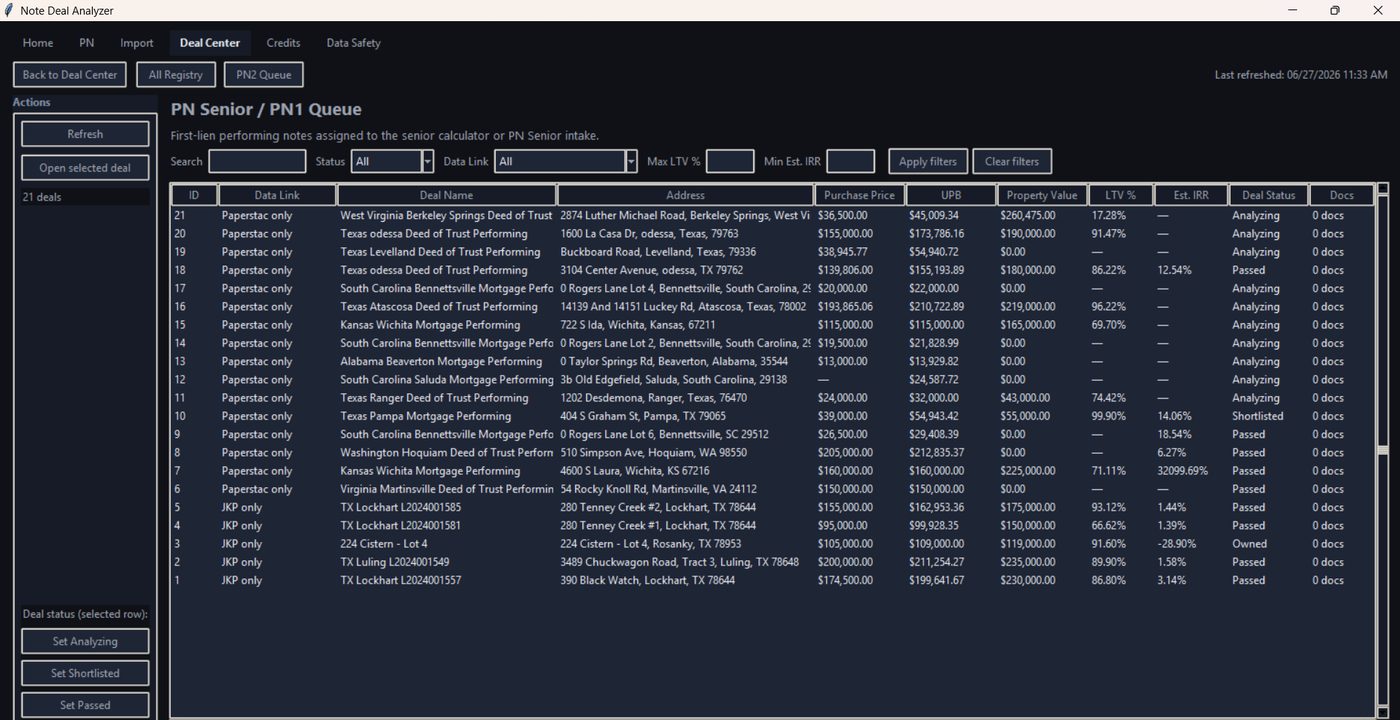
- Open Deal Center.
- Choose All Registry, PN1 Queue, or PN2 Queue.
- Click Refresh if needed.
- Select a row.
- Click Open selected deal.
- Continue in PN Input or Results.
5. Deal analysis / PN workflow
Before pressing Calculate, confirm that the license is active, credits are available, the correct deal is open, required fields are reviewed, and assumptions are checked.
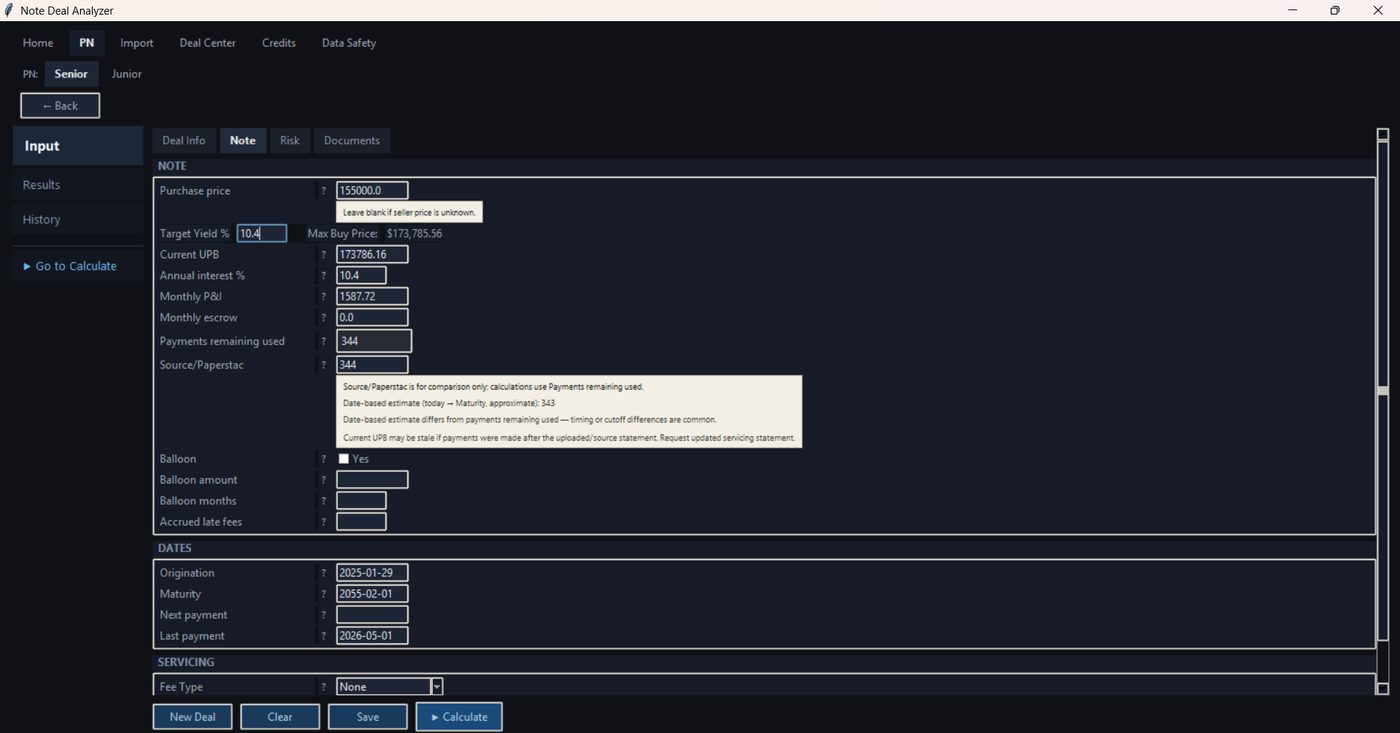
- Open the deal in PN Input.
- Review and complete required fields.
- Click Calculate.
- If validation fails, correct the issue and try again.
- If calculation succeeds, Results opens and 1 credit is used.
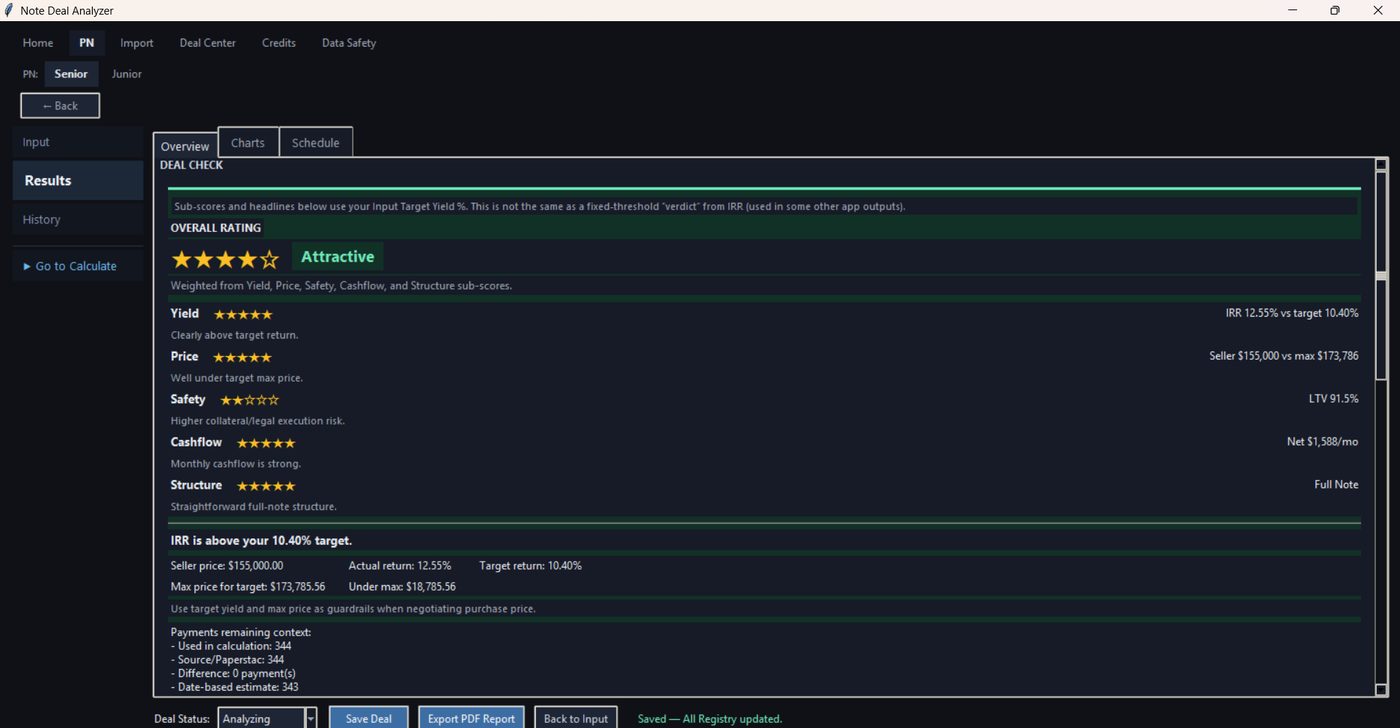
6. Results, Save Deal, and PDF Export
After Calculate, review the result summary, payment/history sections if available, warnings or missing-data notes, and deal status. Save Deal stores the current analysis without using another credit. PDF Export also does not use a credit.
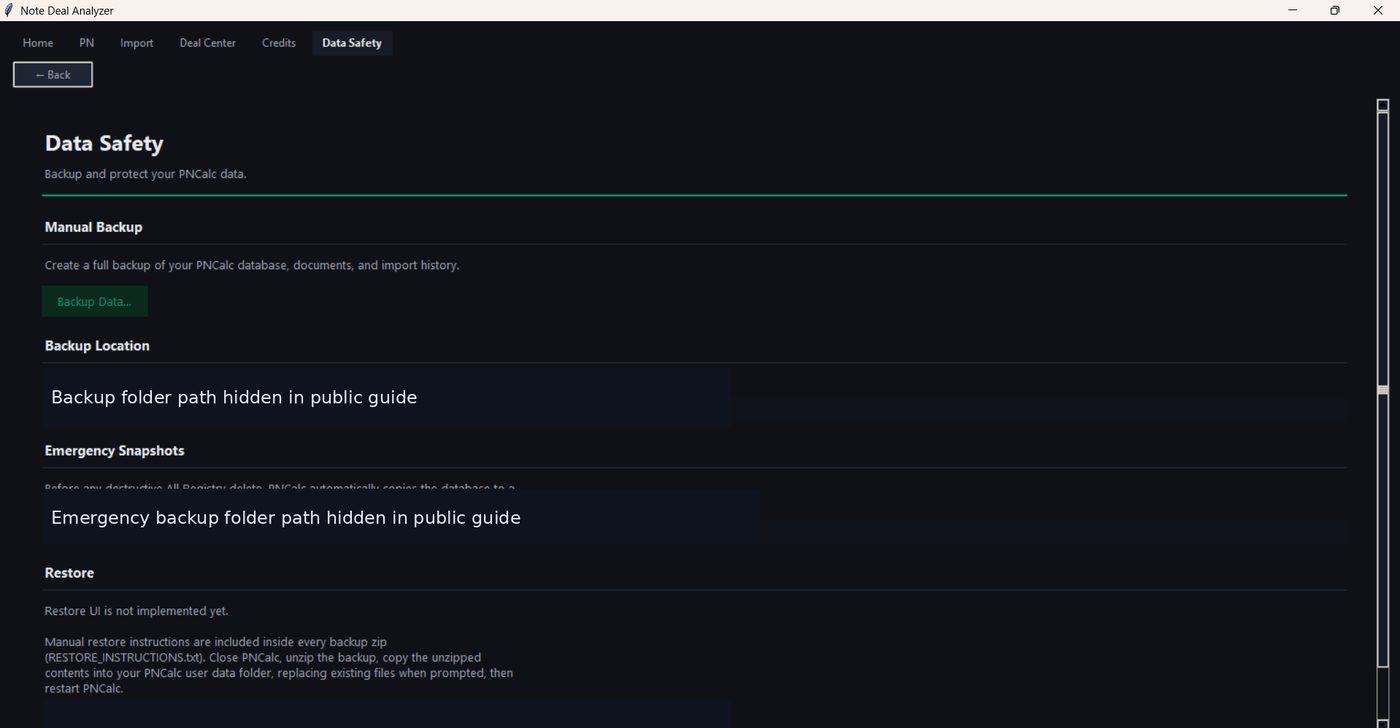
7. Data Safety
Use Backup Data to create a manual backup. Review the backup location shown on screen and use backups before cleanup, major changes, or moving to a new computer.
8. Common problems
| Problem | What to do |
|---|---|
| License key not accepted | Check the key and internet connection. Try Activate again. Contact support if it still fails. |
| Credits not updating | Click Refresh on the Credits screen. If it still does not update, check your connection and contact support. |
| No credits remaining | Purchase or activate another credit package. Saved results can still be opened without using credits. |
| Imported deal not visible | Open Deal Center, click Refresh, and check All Registry, PN1 Queue, and PN2 Queue. |
| Calculation cannot run | Review required fields, license status, available credits, and validation messages. |
| PDF export issue | Make sure results exist first and choose a folder where you have permission to save files. |
9. First-use checklist
- Open the app.
- Go to Credits.
- Enter your license key.
- Click Activate and Refresh.
- Import a deal or enter one manually.
- Open the deal and review fields.
- Confirm credits are available.
- Click Calculate.
- Review results, Save Deal, and Export PDF if needed.